Linking to/from a button
When you select a Button from the block editor one button appears, together with the Button Toolbar.
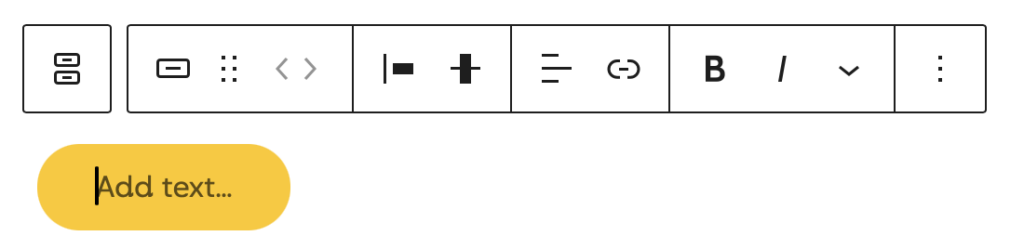
- Select the single Buttons block
- You can choose a variety of Button styles - either fill or outline, as shown below:
A single-button toolbar gives the following options from left to right:
- Drag block handle
- Move up (left) and down (right), only available if multiple buttons are present
- Change a button’s justification (left, centre, right, or equal space between)
- Change vertical alignment (top, middle, bottom, or stretch to fill). This is useful if one button has multiple lines of text.
- Change text alignment (left, centre, right)
- Add a link
- Bold, Italics, and more text formatting options
- More options, including deletion.
The text and associated link can be added as follows:
- Add the required text
- Select the button, the toolbar will appear above it.
- Select the Link icon in the toolbar.
- Search for an existing page on your site or type/paste a URL. (https://www.example.com)
- Select Enter to confirm the link
Adding additional Buttons
Adding additional buttons requires the selection of the parent block at the far left of the Toolbar, and then selecting: +